Windows RDP Guide 2026: Remote Desktop Setup, Security & Tips
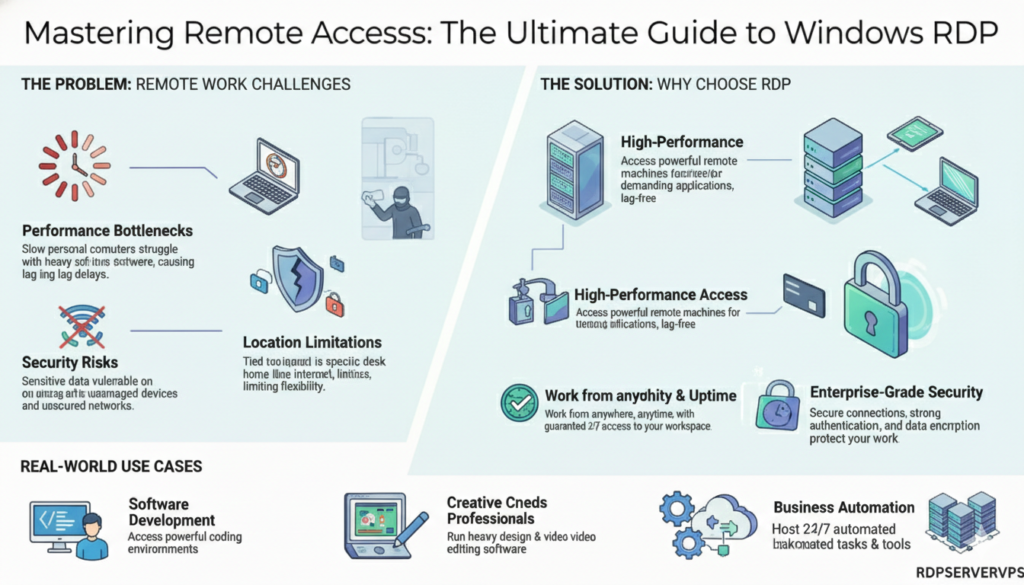
In the modern digital landscape, flexibility is no longer a luxury. It’s the foundation of productivity. We’re no longer tied to office desks, bulky workstations, or even specific locations. Whether you’re a developer accessing a powerful coding environment, a system administrator managing multiple servers, or a creative professional working remotely, Windows RDP(Remote Desktop Protocol) has become the invisible bridge that keeps work flowing.
When we talk about RDP Windows, we’re talking about a technology that removes hardware limitations completely. Your personal laptop no longer defines what you can run. Heavy software, long background processes, and enterprise-grade systems are all accessible through a single remote connection.
This guide breaks down Windows RDP in a practical, real-world way. Not theory. Not surface-level explanations. Just how professionals actually use RDP Windows remote desktop to boost productivity, security, and performance in 2026.
What Is Windows RDP? (The Technical Foundation)
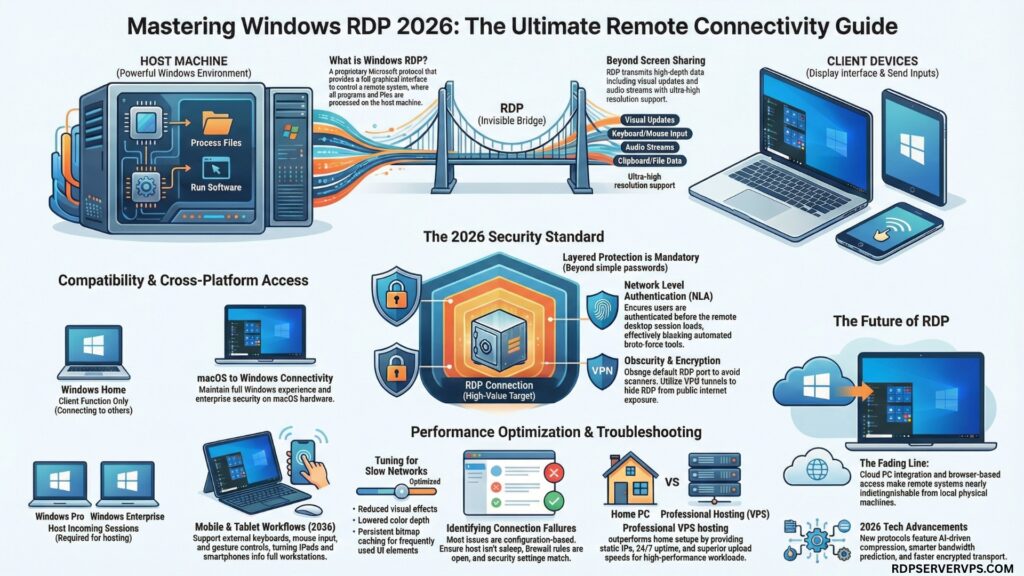
Windows RDP is a proprietary remote access protocol developed by Microsoft. It allows users to connect to rdp Windows system over a network using a complete graphical interface.
What makes RDP different from basic screen-sharing tools is the depth of control. You’re not just viewing a screen. You’re operating the entire remote system. Programs run on the host machine. Files are processed there. The computing power of the remote PC or server does the work.
Under the hood, RDP transmits:
- Visual interface updates
- Keyboard input
- Mouse movement
- Audio streams
- Clipboard and file data
In 2026, RDP supports ultra-high resolutions, smoother compression, low-latency transport protocols, and adaptive streaming that works even on unstable networks.
This is why enterprises still rely on RDP for mission-critical systems.
How Windows RDP Works in Real Practice
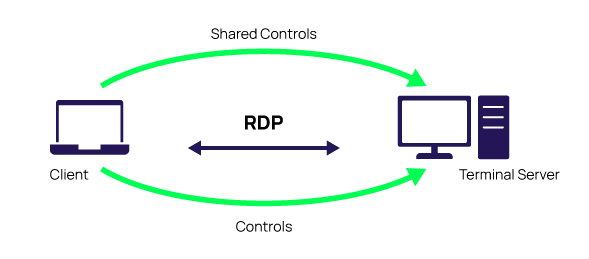
RDP operates on a secure client-server model.
The host machine (PC or server) runs the Remote Desktop service.
The client device initiates the connection using an RDP application.
Once connected:
- The host renders the desktop interface
- The client displays it live
- Your keyboard and mouse control the host in real time
Everything computational happens on the remote system.
This design allows even basic laptops, tablets, or phones to control extremely powerful machines without performance loss.
Windows Edition Compatibility: Home vs Pro
This is where many users get confused.
Windows Home Edition includes the RDP client only.
You can connect to other computers, but you cannot host incoming RDP sessions.
Windows Pro and Enterprise Editions include full RDP server functionality.
These versions allow others to remotely connect to them.
For users limited by Home edition or hardware power, running RDP on a dedicated Windows VPS or server becomes the most practical solution.
How to Remotely Control a PC from a PC (Professionally)
If your goal is to remotely control PC from PC with stability and low latency, the built-in Windows Remote Desktop tool is still the gold standard.
Unlike browser tools or third-party apps, RDP integrates directly into Windows networking and graphics subsystems.
The process is straightforward:
You enable Remote Desktop on the host system, allow user permissions, and connect using the IP address or hostname.
Once connected, you can:
- Access files instantly
- Run heavy applications
- Install software
- Manage background processes
- Work for hours without disconnects
This is exactly how IT teams manage infrastructure at scale.
Cross-Platform Access: Windows Remote Desktop for Mac
Modern workflows rarely rely on one operating system.
Many professionals prefer macOS for daily use while still needing Windows environments for specialised software.
This is where Windows Remote Desktop for Mac becomes incredibly powerful.
Using Microsoft Remote Desktop Mac:
- macOS connects directly to Windows systems
- Full desktop experience is preserved
- Performance remains smooth
- Security stays enterprise-grade
This makes macOS RDP Windows setups extremely common in development teams, digital agencies, and remote businesses.
Building a Secure Remote Connection (Critical in 2026)
RDP is secure by design, but only when configured properly.
Poorly secured RDP is one of the most targeted services on the internet.
Professionals always apply layered protection.
Strong authentication is the first line of defence. Long, unique passwords dramatically reduce brute-force risks.
Network Level Authentication ensures users authenticate before the desktop even loads, blocking automated attack tools.
Changing the default RDP port removes most scanning attempts instantly.
Firewall restrictions allow only trusted IPs.
VPN tunnels hide RDP from public exposure entirely.
When combined, these practices make RDP safer than many cloud applications.
Why Windows RDP Is Essential in 2026 (Real Use Cases)
RDP today goes far beyond remote office access.
High-Performance Workloads
Designers, video editors, and developers connect to powerful remote systems instead of upgrading personal machines.
Secure Research Environments
Cybersecurity teams isolate risky software inside remote desktops.
Always-Online Workspaces
Automation, SEO tools, and servers run 24/7 without interruption.
Global Access
Your desktop remains identical whether you connect from home, office, hotel, or airport.
This flexibility is reshaping how businesses operate.
Performance Optimisation for Slow Networks
Lag usually comes from unnecessary graphical overhead.
RDP allows deep performance tuning.
Reducing visual effects lowers bandwidth usage drastically.
Persistent bitmap caching improves speed for commonly used interface elements.
Lower colour depth reduces data transfer while remaining visually acceptable.
Stable wired connections outperform Wi-Fi when possible.
With proper tuning, RDP performs smoothly even on limited internet speeds.
Troubleshooting Common RDP Problems
Most issues aren’t technical failures. They’re configuration mistakes.
Connection failures usually mean the host PC is offline, asleep, or blocked by firewall rules.
Authentication errors often stem from outdated system updates or mismatched security settings.
Black screens typically result from resolution conflicts or protocol transport issues.
In nearly all cases, small adjustments fix the problem permanently.
Mobile & Tablet RDP Workflows
Remote work no longer requires laptops.
RDP works smoothly on smartphones and tablets.
Modern mobile clients support:
- External keyboards
- Mouse input
- High-resolution scaling
- Gesture controls
An iPad or Android tablet can now operate a full Windows workstation.
This is especially useful for emergency system management and quick remote access.
Why Professional Hosting Makes RDP Better
Running RDP on home PCs works, but it comes with limits.
Home internet suffers from:
- Power outages
- Changing IP addresses
- Low upload speeds
- Router restrictions
Professional Windows servers provide:
- Static IPs
- High-speed networks
- 24/7 uptime
- Full administrative control
For serious productivity, remote servers always outperform home systems.
The Future of Windows RDP
RDP is evolving faster than ever.
In 2026 and beyond, we’re seeing:
- AI-driven compression
- Smarter bandwidth prediction
- Faster encrypted transport protocols
- Cloud PC integration
- Browser-based remote desktops
Remote systems are becoming nearly indistinguishable from local machines.
The line between physical and cloud computers is fading rapidly.
Conclusion: Why Windows RDP Still Leads Remote Computing
Windows RDP remains the most powerful, flexible, and secure remote access solution available today.
From simple remote connection setups to enterprise-scale server environments, it continues to outperform most alternatives in reliability, performance, and scalability.
Whether you’re learning to remotely control a PC from a PC, running heavy workloads, managing systems across continents, or building modern remote workflows, RDP Windows remote desktop remains the backbone of digital productivity.
As remote work expands and cloud infrastructure grows, mastering Windows RDP is no longer optional.
It’s a professional skill that pays off for years to come.
🚀 Ready to Experience Lightning-Fast Windows RDP?
If you’re serious about remote productivity, performance, and security, it’s time to move beyond slow home setups.
With rdpservervps Windows RDP solutions, you get:
✔ High-speed servers with zero lag
✔ 24/7 uptime for uninterrupted work
✔ Secure remote connection with full admin access
✔ Perfect for automation, development, SEO tools, and heavy workloads
👉 Start your powerful remote desktop today and work from anywhere without limits.
Upgrade to professional Windows RDP now and take full control of your digital workspace.
Frequently Asked Questions About Windows RDP (Remote Desktop Protocol)
Windows RDP (Remote Desktop Protocol) allows users to remotely access and control another Windows computer over the internet. It transmits screen visuals, keyboard input, and system resources, letting you operate the remote machine as if you were physically present.
Yes, Windows RDP is secure when properly configured. Using strong passwords, Network Level Authentication, custom ports, firewalls, and VPN protection significantly reduces cyber risks, making RDP a safe choice for professional remote access.
Absolutely. Windows RDP supports cross-platform access through official Microsoft Remote Desktop apps for macOS, Android, and iOS. This allows users to control Windows PCs and servers smoothly from phones, tablets, and Apple computers.
Windows RDP offers deeper system control, better performance optimization, enterprise-grade security, and low-latency connections. Unlike browser-based tools, it runs applications directly on the remote system, delivering faster speeds and higher reliability.